TMG-RM Check for False Spousal Event Sentences #tmg

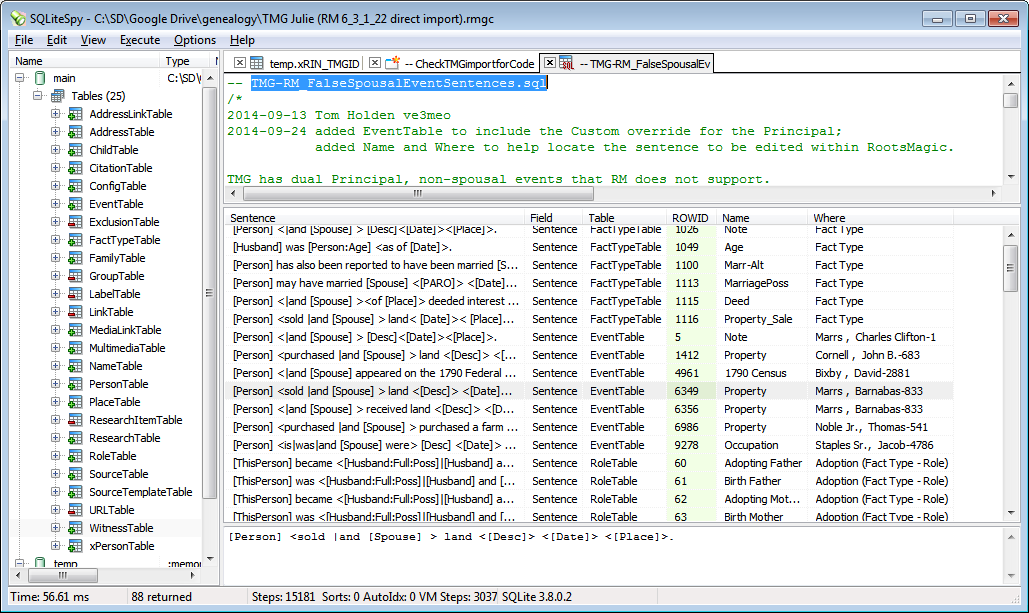
TMG has dual Principal, non-spousal events that RM does not support. Direct import converts these events to Individual type and variables of
Spousal type may get through, i.e., [Spouse], [Husband], [Wife], which are invalid for a RM Indiv event. The name of the variable is outputted instead of nothing when it is unrecognised for a type of event.

This query finds occurrences of these spousal name variables in the Sentence fields of the FactTypeTable, EventTable, RoleTable and WitnessTable. With the name of the table and its ROWID, one could edit the sentence directly from the SQLite manager. The Name of the record where the sentence is defined and the Where value will help find the sentence using RootsMagic to edit and inspect results of changes.

TMG_RM_False_Spousal_Event_Sentences.png
TMG-RM_FalseSpousalEventSentences

Search – Find Almost Everywhere #search #fts

RootsMagic 6 has a very powerful search tool under the main menu item Search > Find Everywhere… However, it really falls short of everywhere, omitting a number of tables and fields within the tables it does search. Notably, it omits the:

  • AddressTable (Repositories, Contacts, Correspondence)
  • FactTypeTable (Fact Types)
  • SourceTemplateTable (Source Templates)
  • URLTable (WebTags)
  • WitnessTable (non-Principals of shared events)

This family of scripts query searches these tables in addition to all other tables which have fields into which the user may enter text. RootsMagic’s Find Everywhere has the advantage of searching within expanded sentence templates for events and footnotes and hyperlinking to the editable field in which the search term found a match. These Find Almost Everywhere queries cannot expand sentence templates and hyperlink but have wider scope; their results give guidance to the power SQLite user to locate the table and record within which its search term found a match. Moreover, their search expressions can be more complex and powerful. However, for user-friendliness, RootsMagic’s implementation is very superior. Also see Search – wayfinding from data tables to RootsMagic screens.

Requirements

SQLite Expert Personal with unifuzz.dll extension for fake RMNOCASE or an equivalent which also supports entry of the search term at run-time and the FTS4 extension.

Usage

  1. Open the RootsMagic database in the SQLite manager.
  2. Load the SQL script into a SQL tab and execute (F5 in SQLite Expert).
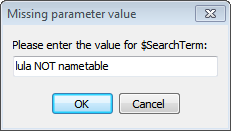
  3. Enter your search term(s) in the Missing Parameter window.
    Find_Almost_Everywhere_Parameter.png
    Entry of search term for Find Almost Everywhere query.
  4. Search results will be displayed in the results pane.
  5. If you find that re-executing the script is time-consuming, for further queries, select/highlight the SELECT statement near the bottom of the script and execute it alone. What takes time in large databases is the building of the virtual table of texts that is required for full text searches.
  6. If you edit a cell using the SQLite Manager, be sure to use RootsMagic’s Rebuild Indexes tool when you return to working with it.
FindAlmostEverywhereResults.PNG
Sample result from Find Almost Everywhere Simple Search query. One can go directly to the identified rows in the MultiMediaTable to examine further or edit directly using the SQLite manager OR use the clues to find the item in RootsMagic’s Media Gallery.

Downloads

FindAlmostEverywhere.sql Builds Full Text Search table and index and provides a simple search.
rev 2014-10-23 made FTS table temp for duration of SQLite session
rev 2014-10-24 replaced collective name like “Various” with explicit field names in FieldName column
FindAlmostEverywhere-Build_FTS_table.sql 2014-10-23 Split from above to Build Full Text Search table and index only. Use one of the following separate scripts to Search so table is not rebuilt every time.
FindAlmostEverywhere-Search_Simple.sql 2014-10-23 Simple Search split out from FindAlmostEveryWhere.
FindAlmostEverywhere-Search_LocateQuery.sql 2014-10-23 Search and Locate returns the content having a match along with a SQLite statement which can be copied to the SQLite editor and executed to open and edit the actual cell.
rev 2014-10-24 ROWID added to the generated SELECT; highlighted snippet instead of full content.
FindAlmostEverywhere-Search_Locate-Results.PNG
A result from FindAlmostEverywhere-Search_LocateQuery.sql on the search term “marr”. Copy the SELECT statement from the LocateQuery column to the SQLite manager and execute to open and edit that cell directly.
FindAlmostEverywhere-Search_LocateQuery-result of LocateQuery.PNG
Result of 2nd LocateQuery from above. As this query presents the raw fields from but one table, the fields can be edited. Select a cell and press F2. However, be very careful; it is safer to edit from within RootsMagic.

Search Terms Syntax

Find Almost Everywhere uses the SQLite 3 FTS4 extension for Full Text Search with its MATCH operator working through the index of the virtual table the script creates from the database. The syntax of the <full text search expression> you may enter as the value for the run-time parameter $SearchTerm is described in the section Full text Index Queries at http://www.sqlite.org/fts3.html but excluding §3.2. Set Operations Using The Standard Query Syntax.
In summary (the <…> brackets are not to be entered):

  • case insensitive except operators MUST be capitalised, else they are just terms
  • wildcard character: * , e.g., <joan*> matches Joan, Joanne, Joanie, Joannie
  • phrase: enclose in double quotes, e.g., <“Alexander Barnes”>
  • NEAR, e.g., <sql* NEAR query> matches “SQLite database query”, “sql is a powerful query”… The distance between the matching terms is by default a maximum of 10 intervening terms but can be overridden as NEAR/n where the integer n sets the maximum distance, e.g., NEAR/2 in the foregoing expression matches only the first of the two examples.
  • NOT, AND, OR, operators in the foregoing default order of precedence which can be overriden by grouping in parentheses, e.g., <(carrie OR lula) AND barnes>
  • implicit AND: <carrie barnes> is the same as <carrie AND barnes>
  • narrowed scope: prefixing the term with the name of the virtual table column restricts the match for that term to that column; normally, the search traverses all columns. <FieldName:description> restricts matches for the term “description” to the column named “FieldName”.

Alternative Structures for the Virtual Table

The FTS MATCH operator looks across all columns of the virtual table for a match to its expression, i.e., one term can match in one column, another term can match in another column; the expression need not be matched by any one column unless prefixing with the column name forces it to do so. Any combination of sub-matches in different columns can result in a full match. Given a source table having multiple text columns, one can choose a vertical or horizontal layout of the virtual table or some hybrid of the two. For example, the WitnessTable:

Vertical layout

Content FieldName TableName Rownum
ghjg Sentence CitationTable 7
yyoyu Note CitationTable 7
dfhd Given CitationTable 7
tyit Surname CitationTable 7
dfghd Prefix CitationTable 7
yuoy Suffix CitationTable 7

Horizontal layout

Sentence Note Given Surname Prefix Suffix TableName Rownum
ghjg yyoyu dfhd tyit dfghd yuoy CitationTable 7

Hybrid layout

This is the hybrid layout used by the Find Almost Everywhere script because it started from the script in TMG-RootsMagic Sentence Variables & Format Codes.

Content FieldName TableName Rownum
ghjg Sentence CitationTable 7
yyoyu Note CitationTable 7
dfghd dfhd tyit yuoy extWitness CitationTable 7

“extWitness” = Prefix Given Surname Suffix)

Comparisons

The vertical layout cannot make a combination match among the fields from the WitnessTable because they are in separate rows in the virtual table. It is inherently a narrow search. The horizontal layout is the widest potential search for a match from the WitnessTable because sub-matches can be made among all its text fields. The hybrid was built on the vertical layout by concatenating the name fields for the external Witness (person not in the database) so it can match in the Sentence, Note OR extWitness content but not in a combination of these.

Further Considerations

This script populates the Content column with values from one table at a time. Search scope could be widened by bringing in content from a JOINed table, e.g., CitationTable and SourceTable.

Another possibility is to link the search results via the TableName and Rownum values to more helpful guides to the Person, Event, Citation etc. That is where the RootsMagic implementation shines with its hyperlinking straight from the result to the corresponding edit screen. See Search – wayfinding from data tables to RootsMagic screens for a FTS query that provides waymarks to help navigate to the RootsMagic screen that controls the data in the matching fields.

Discussions & comments from Wikispaces site


Geraniums

RMNOCASE question

Geraniums
23 October 2014 12:13:46

Hi, I was going to try the FindAlmostEverywhere search tool and installed SQLite Expert Personal 3.5.60.2480. I loaded a RootsMagic 6 database, then the FindAlmostEverwhere.sql. After clicking the Execute SQL button in the SQL tab, a message came up that said, “An error occurred. no such collation sequence: RMNOCASE” etc.

I have downloaded the file RMNOCASE_fake-SQLiteSpy.dll
and it’s in the same folder as the SQLiteExpertPersSetup.exe file.

In SQLite Expert Personal, under Tools > Options, I don’t see where I can register the extension RMNOCASE_fake-SQLiteSpy.dll

Hoping someone can help. Thanks


ve3meo

ve3meo
23 October 2014 12:19:22

The extension you want is unifuzz.dll, see RMNOCASE – faking it in SQLite Expert, command-line shell et al

Tom


Geraniums

Search questions

Geraniums
23 October 2014 15:39:46

1) After getting search results, is there a way to determine which person in RM6 that the record refers to?

2) In the directions for using the search tool it says, “If you find that re-executing the script is time-consuming, for further queries, select/highlight the SELECT statement near the bottom of the script and execute it alone.” I can’t see the SELECT statement on the SQLite Expert Personal screen.

3) When a record is selected, if I type into the Content field, will this change the content in RootsMagic6?

Thanks


ve3meo

ve3meo
23 October 2014 16:46:51

1) Yes, if you know your way around the database. For example (and perhaps a trivial one), the search result indicates a match in the Note field of EventTable at Rownum 1234. Click on EventTable in the sidebar and the Data tab in the main view. Scroll down to RecNo/EventID 1234 OR click on the row “Click here to define filter” and enter “1234” under either the RecNo or EventID heading. Look under OwnerType and OwnerID. If OwnerType=0 then OwnerID is the Person with that RIN and you can look them up in RootsMagic Explorer (Ctrl-F, Alt-R). If OwnerType=1, then the OwnerID is the FamilyID in FamilyTable and you will need to look in it to get the RINs of the couple.

I have some intention of providing a more user-friendly result to save much of that manual navigation…

2) Click on the SQL tab. Pull down the divider between the SQL pane and the results pane to expose more of the script and use the scroll slider to get to the bottom of the script (or use other Windows techniques). Look for:
—–repeat the following query as often as you want—–
—————- Full Text Search query —————–
SELECT * FROM xFTStable WHERE xFTStable MATCH $SearchTerm
;

3) No, you cannot edit the results of a query. You can edit a cell displayed under the Data tab. In our example above, having found EventID 1234 in EventTable, you can double-click on any cell in that row to open the Record Editor. Scroll down to the Note heading which will have 4 buttons Auto|Blob|Image|Text. Click on Text to edit the Note.

Tom


ringozmy

Person Search According to the Place of Residence

ringozmy
28 June 2017 23:59:22

Hello,

I have a list of 10K individuals and their place of residence, and I would like to retrieve their personal information (gender, race, job, age, etc.) from 19-century US censuses. Can I do it through SQLite for RM? Could you give some suggestions? Thanks!


ve3meo

ve3meo
29 June 2017 01:31:34

Do you have in your database Residence, Race, Occupation and any other facts you wish to retrieve for these people?Or are they just in the Citation text for the person and the citation is tagged to a Census event?

RMpi GEDCOM Pre-Import Tweaker for RootsMagic #gedcom #tmg #application

This is NOT SQLite! Rather, RMπ (RMpi) is a little application that tweaks a GEDCOM file you want imported into RootsMagic for potentially more complete data transfer. More development may come later but it could be useful now, especially to early emigres from The Master Genealogist 9.0.3 and earlier.

Perhaps equally importantly for exchanges between RootsMagic databases, it works around the serious issue of truncation at the 100th character of fact Descriptions that happens both for drag’n’drop and for GEDCOM import in RootsMagic 6.3.1.4 and earlier. Export does not truncate or, at least, not so early.
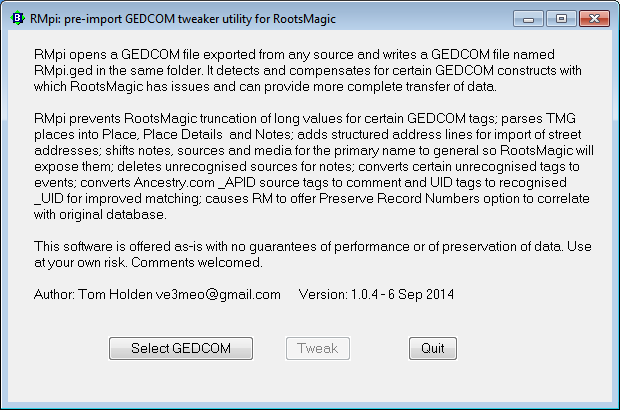
RM_pre-import_main.png
Main screen on opening. Once you have selected a GEDCOM file, the Tweak button is enabled…Click it.
RM_pre-import_log.png
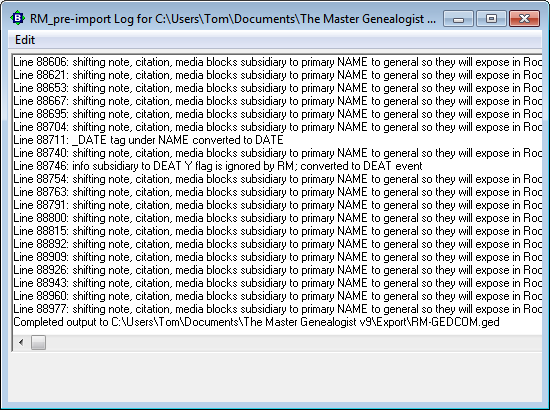
Live log window displays tweaks as they happen.

Download

RM_pre-import 103.zip Download and extract all files to the folder of your choice. Click on “RM_pre-import.exe” to launch the program.

RM_pre-import 104.zip This version parses TMG Place values into RootsMagic Place, Place Details and Place Detail Notes but takes a major setback in speed.

Tweaks

For brevity, the RM_pre-import utility will be referred to as RMpi. RootsMagic behaviours described are those of v6.3.1.4. The Master Genealogist behaviours are those of v9.0.3.

  • NEW in 1.0.4: TMG Place values parsed into RootsMagic Place, Place Details and Place Detail Notes.
  • NEW in 1.0.3: Modifies HEADer block so that RootsMagic will offer the “Preserve record numbers” option on importing into a new database; line counter to show RMπ is working.
  • NEW in 1.0.2: RMpi now modifies Witness tags generated by Thomas Giammo’s WitnessTMG utility to create one custom “*Witness” fact type in RootsMagic. Use these to refer back to your TMG database and decide whether to create a shared event in RootsMagic, edit the *Witness event or leave it as is.
  • RootsMagic truncates GEDCOM event/attribute in-line values at the 100th char and does not recognise subsidiary CONC|CONT lines. TMG exports unlimited length Memo fields to certain GEDCOM event/attributes. RootsMagic itself does not limit the size of entries in its event Description fields and exports them fully. Its own drag’n’drop process uses its GEDCOM export/import processes in the background, resulting in truncation of long event descriptions. RMpi converts the excess to the EVENt NOTE which RootsMagic imports without constraint.
  • RootsMagic does not expose Notes, Citations and Media for the primary name of a person, the first NAME exported for the INDIvidual. RMpi shifts their level up so that they become exposed as general Notes, Citations and Media in RM.
  • RootsMagic does not import street addresses from the ADDR tag and a subsequent CONT tag, only from ADR1 and ADR2. In the absence of ADRn tags, RMpi adds them with the values from ADDR and the first subsequent CONT.
  • RootsMagic ignores the UID tag from Ancestry.com which may have been uploaded from a RootsMagic GEDCOM as a _UID tag. RMpi changes the UID tag to _UID which can then enable RootsMagic ShareMerge to identify and merge identical persons.
  • RootsMagic ignores the _APID tag from Ancestry.com which is key to finding a source in the Ancestry database. RMpi places the _APID value within privacy braces in the Master Source Comment or Citation Comment (GEDCOM NOTE tags) from which it can be manually retrieved or, perhaps, some future process on the RM export will regenerate the _APID lines from the NOTEs (maybe RMpe or RMpx 😉
  • RootsMagic ignores the Ancestor Interest (ANCI) tag and, likewise, the Descendant Interest (DESI) tag. RMpi converts them into EVENts of corresponding TYPEs and the value (currently a reference to another line in the GEDCOM) is stored in privacy braces in the NOTE, e.g. “{@SUB1}”. One can then look up that reference in the original GEDCOM and use RootsMagic Search and Replace to replace it with the interested person’s name. A future enhancement of RMpi might fetch the name.
  • RootsMagic supports a DATE for INDIvidual NAME tags, which is not consistent with GEDCOM specs, but allows Alternate Names to be dated similarly to events. There is talk of the use of a custom _DATE tag from other software to respect GEDCOM. RMpi converts _DATE to DATE so that RootsMagic will import it.
  • RootsMagic ignores the citation quality tag QUAY under some conditions not fully understood. RMpi stores the QUAY value in privacy braces in the NOTE for the SOURce value unless the NOTE already contains “Surety”.
  • RootsMagic treats a line 1 DEAT Y as simply a flag indicating that a person is deceased, not as an event, and ignores all subsidiary information. If there are subsidiary lines such as a NOTE, RMpi revises it to “1 DEAT”, without the “Y” so that RootsMagic imports the subsidiary values.
  • TMG exports under some conditions a citation (SOUR) tag under a NOTE which RM does not recognise; such citations appear to duplicate those for the parent events. RMpi deletes the unrecognised citation block.

Tips

Matching ID numbers between source database and RootsMagic

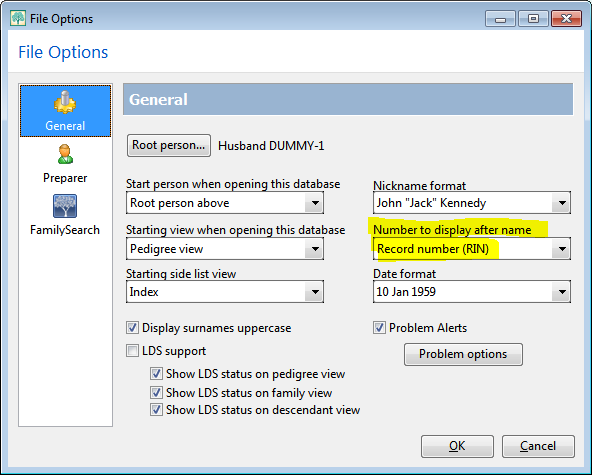
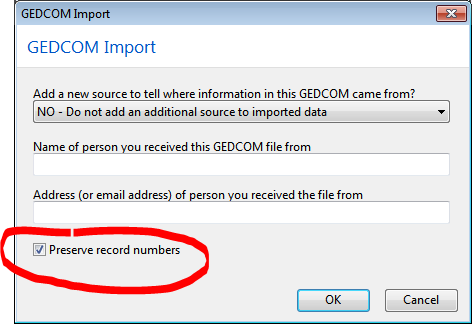
Be sure to check the option “Preserve record numbers” in the RootsMagic GEDCOM Import dialog. This option appears if the trick introduced in v1.0.3 works and only if it is a new empty RootsMagic database. It has been tested with TMG v9.03 and results in the TMG Reference field REF_ID, which is exported to the GEDCOM INDI record number, traversing to the RootsMagic record number (RN or RIN). Then, after importing, under the RootsMagic Tools > File Options > General choose “Record number (RIN)” from the drop-down listbox labelled “Number to display after name”.
Preserve_Record_Numbers_Option.png
RootsMagic GEDCOM Import dialog, showing the option “Preserve record numbers” which should be checked; by default it is unchecked.
File_Options_RIN.png
RootsMagic File Options, found under the Tools menu, set to display the Record number (RIN) after the person’s name in most screens and reports.

TMG Export Settings

TMGexportsettings_RMpi104.png
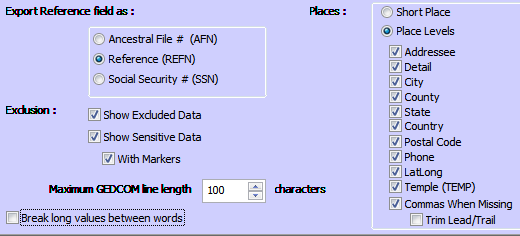
Export Reference field as: Reference (REFN) if you want to have the Reference number preserved in a RootsMagic fact, immune to changes in its Record Number. RMpi 103 does result in RootsMagic offering the option of preserving the TMG Reference number as its Record Number, without this setting, but the RN will change if a person is transferred to a non-empty database.

Exclusion: all checked for maximum data transferred.

Maximum GEDCOM line length: not critical. RootsMagic 6.3.1.4 and below truncates some event/attribute values at 100 characters; RMpi converts the excess to Notes.

Uncheck “Break long values between words” to preclude word concatenation.

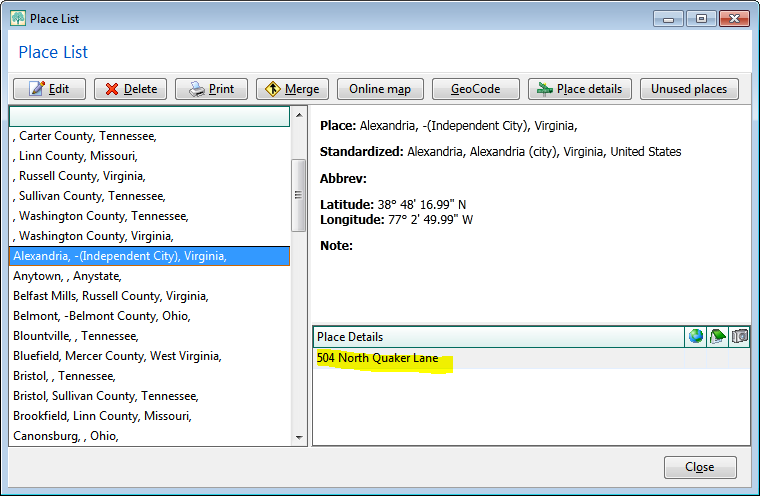
Places: Place Levels: These settings are required for RMpi 1.0.4 or for a special fork of RMpi so that it can properly slot the TMG place fields in RootsMagic Place List fields Place, Place Detail and Place Detail Note. The GEDCOM will have lines such as:

2 PLAC , -Erwin Parsonage, Erwin, Unicoi County, Tennessee, , , , ,
Place_List_From_TMGvia_RMpi104.png
The TMG Detail “-Erwin Parsonage” will end up in Place Detail while City, County, State, Country will be sent to Place. The rest of the values will go to the Place Detail Note. This can only work if there are 9 commas in each PLAC, hence all Place Levels are checked along with “Commas When Missing” and we do not want leading and trailing commas to be trimmed. Undoubtedly there will be cleanup to do in RootsMagic. Here is an example of the result from RMpi104 of an import of the TMG Sample Project:

History

2014-08-31 1.0.0 Published
2014-08-31 1.0.1 Enclosed ANCI/DESI values in NOTEs in privacy braces, e.g.: “{@SUB1@}”, because RootsMagic otherwise ignored it.
2014-09-01 1.0.2 Modifies Witness tags generated by Thomas Giammo’s WitnessTMG utility to create one custom “*Witness” fact type in RootsMagic
2014-09-02 1.0.3 Modifies HEADer block so that RootsMagic will offer the “Preserve record numbers” option on importing into a new database; line counter added
2014-09-06 1.0.4 TMG Place values parsed into RootsMagic Place, Place Details and Place Detail Notes; Live Log revised to use codes for higher speed.

Issues

Platform

RMπ was developed on the free but dated JustBasic 1.01 (website). It is not the most robust development system – much time wasted when it was corrupted by something – but a procedural language such as GW-BASIC or QBasic seemed to be appropriate for GEDCOM manipulation. And I thought the learning curve would not be so steep. Perhaps I should have tried to do it in Visual C#, which is what I used for RMtrix but I am now very rusty with what I had learned then.

Speed

Prior to v1.0.4, RMπ processed some 2000 GEDCOM lines per second on a vanilla Windows 7 laptop. The same file on RMπ 1.0.4 drops to under 1700 lps but is one that does not invoke TMG Place parsing; a small one that does knocks the processing speed down to ca 1000 lps. Replacing the Live Log with a Log file may recover some speed. However, speed is not necessarily an issue if the process is used only once (i.e., the results are acceptable).

Live Log

Not only does the Live Log affect speed of operation, its copy to clipboard capacity is small. It would be beneficial to write instead to a file which can then be opened by a more capable text editor. Moreover, the same text editor can have the original GEDCOM open with which the log directly relates via the Line Number. And the RMπ output GEDCOM can also be opened and related to the original by references such as the INDI number.

TMG Place Parsing

This may not prove to be generally reliable due to the flexibility that TMG offers and the variety of ways that users may populate its Place fields. The parser relies on a specific export setting causing a certain number of commas to be embedded in the exported PLAC value. This is of no consequence for fields lower in the list than Country but any values with commas in them at or above Country will throw it off.
RIN MRIN – add Reference Number fact to all persons #mrin #refno #rin

2024-08-06 updated script for RM8-10 added

Migrants to RootsMagic from other genealogy software are often disappointed in the invisibility of the Marriage Record Identification Number or MRIN and may have a filing system based thereon. While the individual’s record number (RIN) may be preserved in certain imports either in the RootsMagic RIN or in a custom fact type, no such mapping is provided for MRIN. And should data be transferred from one RootsMagic database to another or to some other software, MRINs (and RINs, for that matter) may change. Therefore it is advisable that nothing needing to be permanent should be based on a potentially volatile number such as MRIN.

However, one could make a snapshot of the current RIN and MRIN and store it in a Reference Number fact which is transmitted reliably through GEDCOM to virtually all genealogy software. That is what this script does.

REFN-_MRIN.png
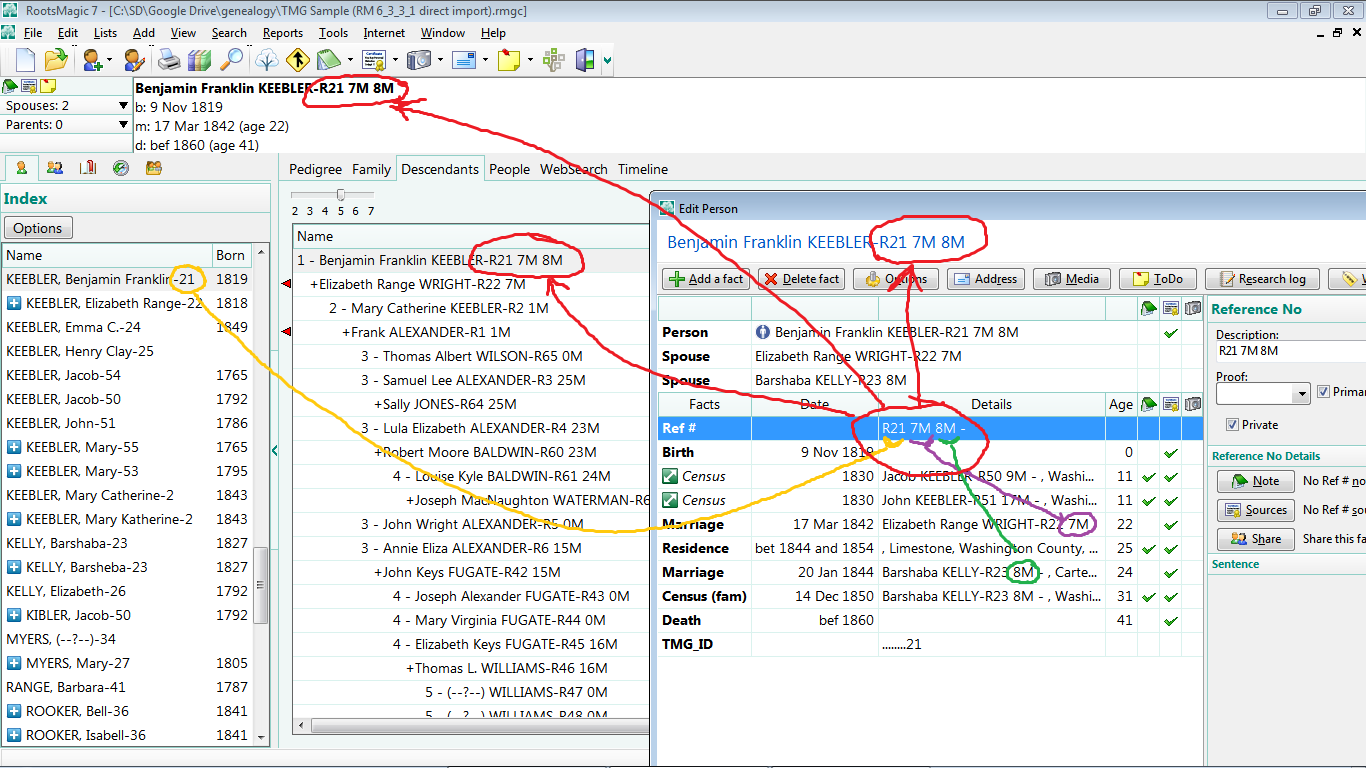
Reference Number fact containing the RIN and MRINs for a person added by REFN-MRIN.sql. Tools>File Options>General>”Number to display after name” set to “Reference Number (REFN)”.

The format of the Reference Number is designed so that searching through them for an MRIN or a RIN can produce unambiguous results with the “contains” operator. The RIN search term is “Rnn ” – the leading “R” and trailing space character delimit the RIN so that matches are not found among the MRINs or in other RINs that have the same “nn” sequence of digits somewhere in them, e.g., the search term “17” could match within R9175 or within “817M”.

Likewise, to search for a MRIN, the search term should be in the form ” nnM”. In this case, a leading space character and trailing “M” disambiguate search results.

At the time of the above screenshot, the script did not create Reference Number facts for persons with no children nor spouse, i.e., not in the FamilyTable and thus having no FamilyID or MRIN. The script now produces the REFN fact for them in the same format with “0M” to signify the lack of a MRIN. Note that I have assumed that MRIN and FamilyID are synonymous; no Marriage fact is required for there to be a FamilyID – the latter are created whenever a couple is paired or a person is linked to another as a parent which necessitates a couple, even if one partner is unidentified.

For each Ref# fact created, the script also does this:

  1. Sets fact private so it can be suppressed in tabular reports and exports.
  2. Sets fact primary so it is the Reference Number displayed after the name when there are other such facts; however, if another such fact is marked primary and was added earlier, it takes precedent.
  3. Sets SortDate so that the fact appears at the top of the list in the Edit Person screen.
  4. Sets the EditDate to system time but this has no effect on the “Date last edited” optionally displayed in People View. It may be of use to the power SQLite user in looking for exceptions by inspecting the EventTable.
  5. Customises the local sentence to output nothing in narrative reports.

Requires the REGEXP and GROUP_CONCAT() functions which are available in SQLiteSpy 1.9.10, on which the script was developed.

REFN-MRIN.sql version for RM7 and earlier

REFN-MRIN-RM10 version for RM8 and later #rm9 #rm10

An earlier script took a different approach, adding each MRIN as a custom fact to each person so that a person with two spouses would receive a corresponding number of these facts. This may be advantageous for some things. See Facts – Add custom MRIN event to each person.

Reports – New Paragraph for General Note #paragraphing #reports

RootsMagic 6.3.1.0 introduced in 2014 some very nice options for control of paragraphing of narrative reports after we had developed a number of scripts in 2011ff described in Paragraphing. There remain some issues for some people as of RM 7.2.1.0. One was recently expressed by Wiki member aefgen:

Now another problem that I see has been discussed before: the last fact to print for a person in the narrative report is followed immediately by the general note for that person, even when you choose to have a space between each fact. That last fact (which will vary depending on what other facts are included in the database for that person) runs on into the text for the note.

Reports-_New_Paragraph_General_Note.sql-_Narr_Report_Be.png
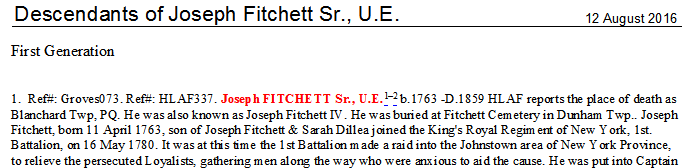
Snippet from a narrative report showing the General (or Personal) note running on in the same paragraph as the last individual event.

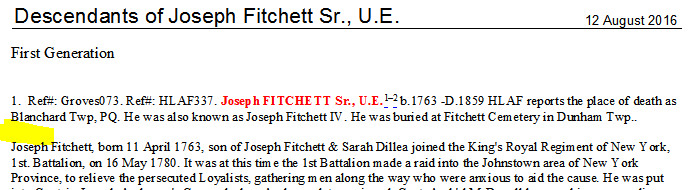
Here is a script that works around this limitation by pre-pending to the General Note two pairs of CR/LF control codes to force a new paragraph. It applies the codes only to non-empty notes.

Reports-_New_Paragraph_General_Note.sql-_Narr_Report_Af.png
Same report as above after running the script.
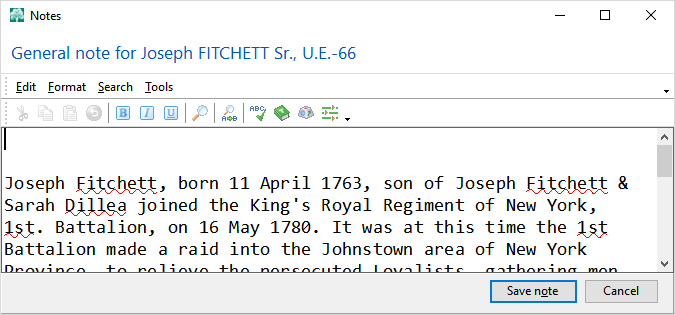
Reports-_New_Paragraph_General_Note.sql-_Note_Editor.png
The modified General Note as viewed in the RootsMagic Note Editor.

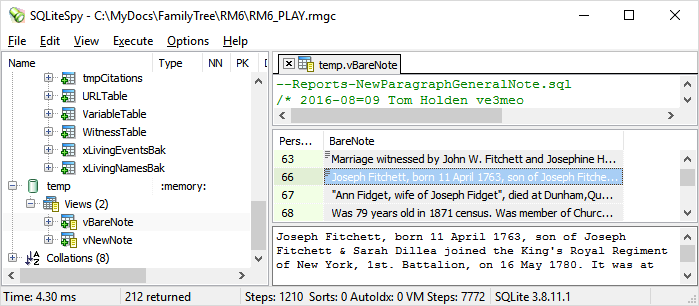
When executed on a database, the script creates two temporary views that persist as long as the SQLite manager keeps the database open:

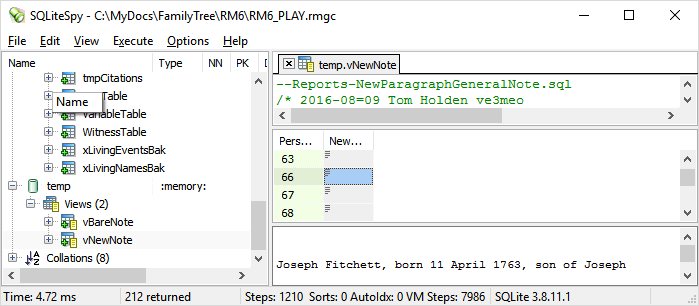
  • vBareNote: the non-empty General Note stripped of one or two pairs of leading CR/LF in readable text,
  • vNewNote: the Note from vBareNote pre-pended with two CR/LFs in readable text, which has been applied to the database Note field in PersonTable.
Reports-_New_Paragraph_General_Note.sql-v_Bare_Note.png
vBareNote should always show the first line of text from the General Note with no leading blank lines, else there is an issue.


Reports-_New_Paragraph_General_Note.sql-v_New_Note.png
vNewNote should always show two empty lines before the text, else there is an issue.

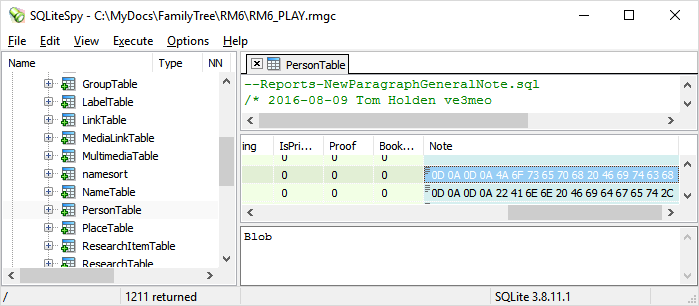
The Note field in PersonTable is typed by RootsMagic to be BLOB (Binary Large OBject) so the script CASTs the readable text accordingly. That said, RootsMagic does not appear to preserve the type for this field converting it to Text when you next Save from the Note Editor. This change in type may be a useful indicator of edits done in RM after the last time this script was run.

Reports-_New_Paragraph_General_Note.sql-_Person_Table.png
After running the script, all the non-empty Note fields in PersonTable should be of type “BLOB” with two pairs of leading hex characters “0D 0A”, the ASCII control codes for CR/LF.

If a vBareNote cell does not display the first words of the Note, there is a problem with the original Note in PersonTable that requires manual attention either through RootsMagic (the vBareNote.PersonID is the RootsMagic RIN or Record Number) or through the SQLite manager. Re-executing the script after such manual edits will assure that the PersonTable.Note fields consistently have two leading CR/LFs.

Reports-NewParagraphGeneralNote.sql

Language other than English #languages #reports #french

Background

RootsMagic Inc promised non-English language versions would be forthcoming when RootsMagic 4 was released in 2008. RootsMagic 4 was built on a database that supports Unicode and data can be stored in most languages. RoostMagic would seek volunteers to help translate the user interface and report strings into their languages. Nothing has ever come of that promise and users continue to seek ways in which they may be able to, at least, produce reports that are in another language.

An Attempt

This page provides the means to change what you can in RootsMagic 7 into another language and demonstrates its limitations. French is the example used because the author knows it a little bit.

Ind_Summ_Delilah_Woods-_Franglais.png
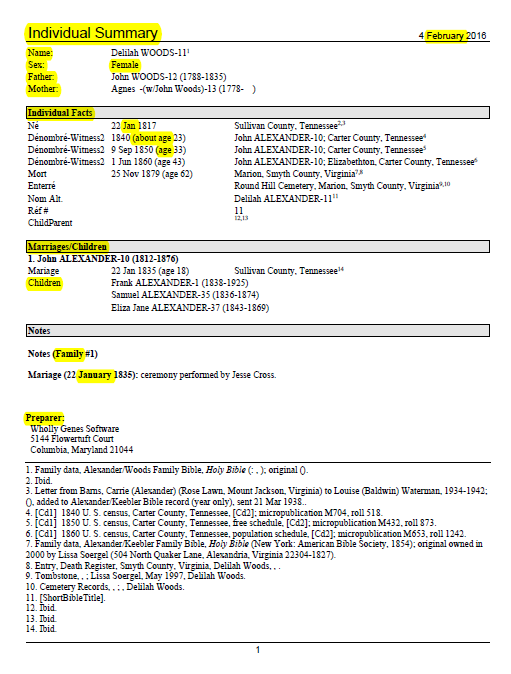
Individual Summary report with French fact names. However, highlighted words are hard-coded and cannot be changed.

The Individual Summary Report has the fewest elements that are hard-coded in English, of any of the popular text reports. The Narrative reports have the most. The page above has highlighted examples of the hard-coded English text which the user cannot change.

The report does show French fact names (maybe not the best translations but that is beside the point). The RootsMagic user interface in Lists > Fact Type List, allows the user to change the fact names and abbreviations for user-added fact types but not for the built-in fact types. However, it is possible to change the built-in fact types through SQLite as described below.

One could open the database with a SQLite manager and edit the FactTypeTable fields Name and Abbrev directly for all having a FactTypeID under 1000 – these are the built-in ones. Everyone above 999 is custom and can be edited through RootsMagic.

I took a different approach. I opened the FactTypeTable and copied from it to Excel, keeping just the columns FactTypeID (the key), Name and Abbrev. I added columns for the translated Names and Abbrevs and for formulas to create SQLite statements. I copied the Name column into Google Translate and its output into the translated Name column. Likewise for the Abbrevs. In Excel, I revised the translations as some were clearly wrong or poor (and maybe some still are). The spreadsheet could be used for any language.

Then I developed a SQLite script in Excel that I could copy out to the SQLite manager. The script creates a table with the English and translated fact type names and abbreviations and revises RootsMagic’s FactTypeTable accordingly. It does not touch the fact sentences which remain in English but that is something the user can do through RootsMagic.

Downloads

FrenchFactTypes.xlsx Edit this spreadsheet to create the following script for another language.
Facts-TranslateNames.sql Run this script as-is to convert your built-in fact types to French.

Export to a French (or other) Database

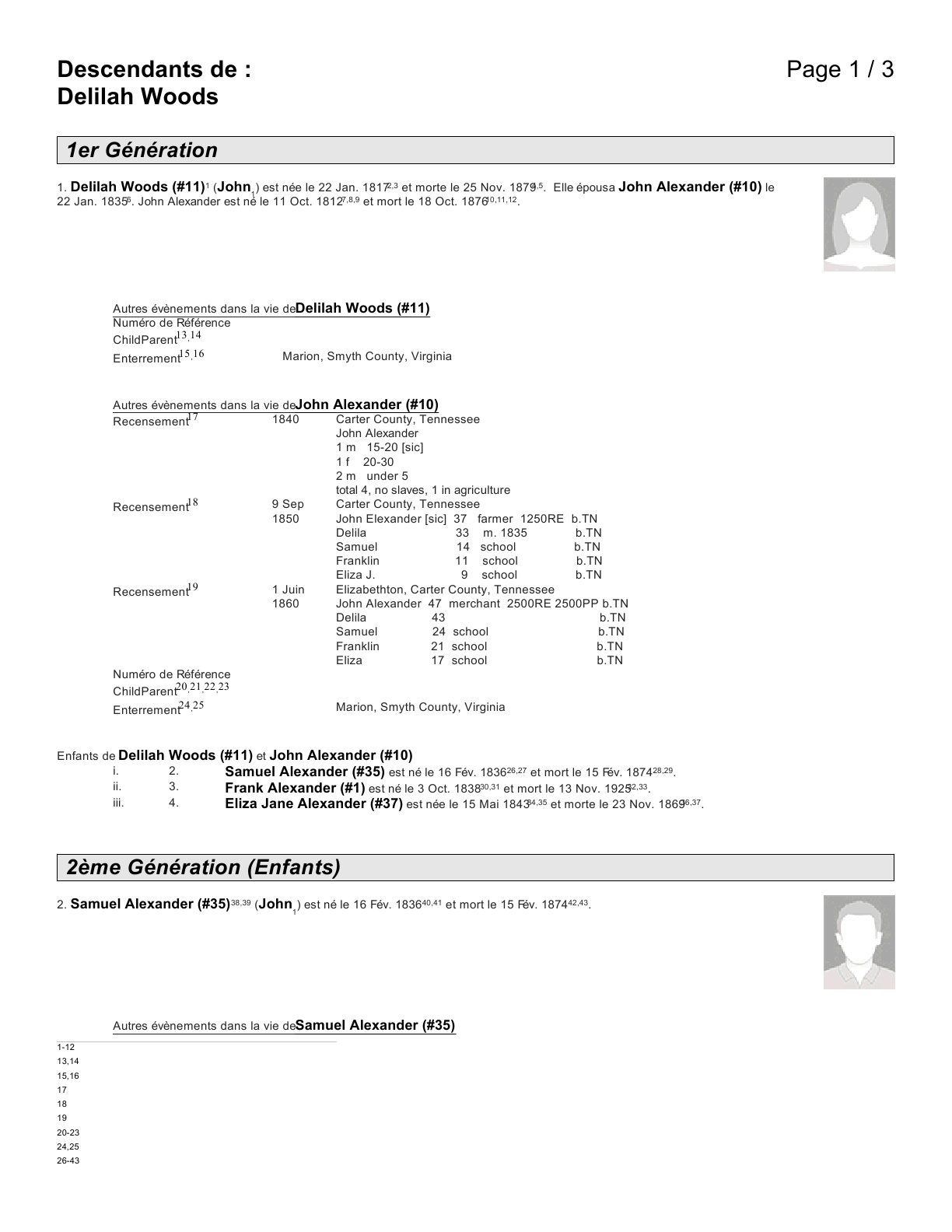
Because RootsMagic does not produce a complete non-English report even with the above translations, the only other option is to export the subjects of the desired report to another software that does. Below is an example of a report from Family Tree Builder 8.0, a free software from MyHeritage.com that can work in 40 or more languages. This is the first page of a Descendant report; it has no equivalent to the RootsMagic Individual Summary. While it is a major improvement linguistically, there are flaws due to the GEDCOM translations by both programs. And FTB outputs footnotes in its French report as blanks, not even the English originals; perhaps a bug in this new version that has undergone a major rewrite from version 7 as RootsMagic did between 3 and 4.

RM_GEDCOM_imported_to_FTB-_Desc_Report_French.png
Sample report from Family Tree Builder 8.0 from data imported from a GEDCOM exported by RootsMagic 7.

Group – Population statistic #namedgroup

rev 2023-02-20 added version for #RM8

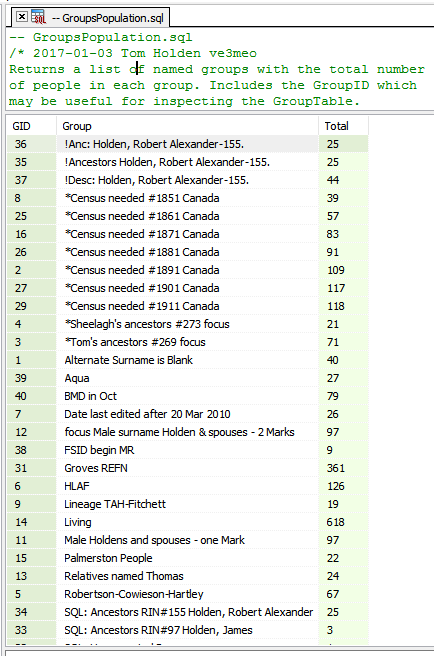
Groups_Population.png
As executed and displayed in SQLiteSpy.

This small query returns a list of named groups with the total number of people in each group.

It also includes the GroupID number which may be useful for inspecting the GroupTable.

It creates a temporary View which is dropped when the SQLite manager closes the database.

It requires the RMNOCASE collation.

It is very fast. On a database of some 1200 people and 40 named groups, it takes around 8 milliseconds to the results in the screenshot. On a database of 160,000 and 3 groups, just 1/3 second.

Download

GroupsPopulation.sql for pre-RM8 versions

FTM to RootsMagic Migration #ftm2014 #gedcom

This page provides some guidance to émigrés from Family Tree Maker to most completely and successful migrate their data to RootsMagic. It includes some operations in FTM itself in preparation for exporting data, the export itself, operations on the GEDCOM file before importing into RM, and then operations in RootsMagic and with SQLite that complete the process. What is provided here is from the perspective of a light user of FTM who primarily was interested in its ability to batch download citation images along with the Ancestry Family Tree, acting as an intermediary between Ancestry.com and my RootsMagic database. The platforms on which this page is based are Family Tree Maker 2014 for Windows and RootsMagic 7.0.9.0 for Windows.

Cleanup in Family Tree Maker

Don’t rush to export your database without considering whether there are things you should do to clean it up first, because:
a) You want as complete an export as possible (not everything makes it to GEDCOM)
b) You want the export to be as compatible as it can be with RootsMagic (if RootsMagic does not recognize something in the GEDCOM file, it is not going anywhere)
c) There may be some normalisation of your data and styles more easily done in Family Tree Maker.

One reference offering guidance on cleanup is Ben Sayer’s blog article, Replacing Family Tree Maker, Part 1: How to Scrub Your Data, but I would offer a caution: his approach is to achieve highest compliance with the GEDCOM 5.5.1 draft specification, according to his interpretation. While RootsMagic supports the same specification, that does not mean that it has been interpreted consistently with his. There may be differences that warrant different cleanup operations or, in some cases, inaction. It also is based on Family Tree Maker 3 for the MacIntosh computer, not Family Tree Maker 2014 for Windows which is the basis for this page. I recommend that you read through each Part and comments to Part 3 as there are things he discovered with the import of his ‘spec-compliant GEDCOM’ that counter some of what he recommended in prior Parts, e.g., he advises against converting EVEN tags to FACT tags as he had recommended in Part 2.

Exporting from Family Tree Maker 2014

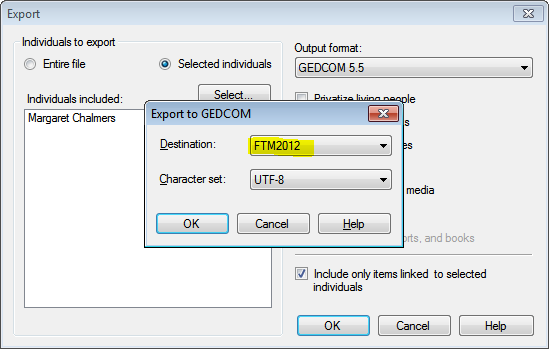
FTMExport_Dialog.png
FTM2014 Export setting

The common recommendation has been to export to GEDCOM 5.5, Destination: Other. However, that GEDCOM omits some things, notably Media Description, that are included if you change the Destination to Family Tree Maker 2012. Use the UTF-8 Character Set for support of most alphabets.

Edit the GEDCOM for better compatibility

Ben Sayer’s page Replacing Family Tree Maker, Part 2: How to Get Your Tree out of FTM provides useful guidance on tools and procedures for editing the GEDCOM file exported from FTM. However, there are changes he advocates for compliance with GEDCOM 5.5.1 that may be unnecessary or inappropriate for an import to RootsMagic 7.0.9.0. Read Part 3 before you undertake any of the revisions he recommends in Part 2. This is a work-in-progress that will expand with experience.

Import into RootsMagic

Ben’s page

Post-import Operations

Events with no Media attached #events #media

I am wanting a list of events that have no media attached. I am looking specifically for Residence/Census events that don’t have the Census Media attached. I may use this for birth certificates, death certificates, headstones, etc. Do you have a query for this? I have looked for one but it didn’t seem to be what I was looking for. I want the ownerid, given name, surname, the fact type, thee date, the details.


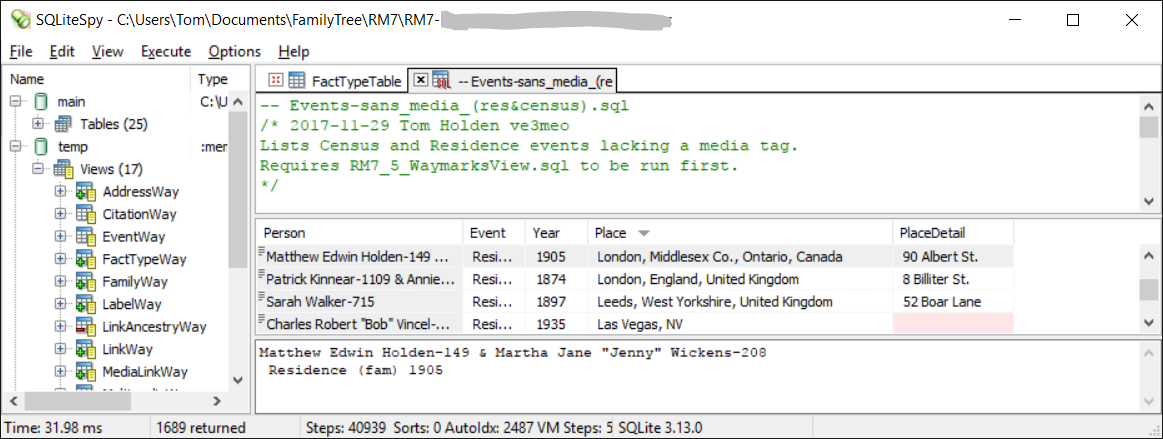
You could start from scratch or adapt from several scripts already developed. Here’s an example that starts with the Wayfinder Views in Search -wayfinding from data tables to RM screens. Download and execute the script RM7_5_WaymarksViews.sql from that page. We’ll use the EventWay view as a start as it takes care of looking up the name and RIN of the person or the couple if a family-type event.
Events-sans_media.png
Events-sans_media_(res&census).sql

Tom


As promised, here is my overly grandiose script to find missing stuff in my database, mostly missing sources and media. It’s fine tuned for my personal research needs, but it may provide some ideas.

Jerry
missing_stuff.sql

Color Code by Consanguinity Degree #colorcoding #relationships

I only recently recognised that the values that RootsMagic puts into the Relate1 and Relate2 fields of the PersonTable when the Set Relationships function is applied are more useful than merely codifying the relationship (e.g., see Relationships). Apart from special cases for Self and in-laws, the sum of the two values corresponds to the degree of consanguinity (see this Wikipedia article). For example, the degree of separation in consanguinity is the same from you to your g-g-grandparents (4) as it is to your 1st cousins and your great-aunts and -uncles and your grand-nephews and -nieces. It strikes me that the consanguinity degree might be an interesting, if not useful, basis for color coding. Indeed, it is so easily implemented, I wonder why it is not an option for the Color Code People tool or that consanguinity is not a criterion for finding people and creating groups.

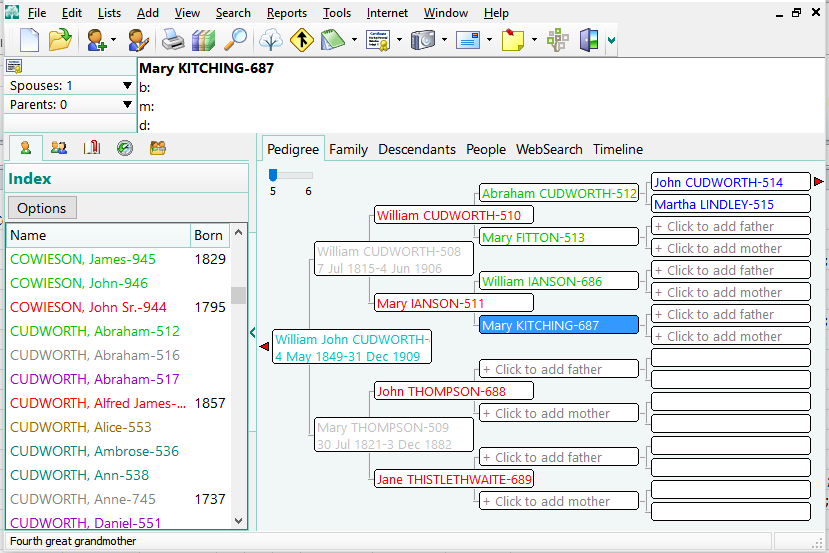
Color_Code-by_Consanguinity_Pedigree.png
Example of color coding by consanguinity degree. Note that each generation of grandparents gets a different color, a difficult task in RootsMagic.

There are 14 color codes plus black in RootsMagic 7 thus supporting consanguinity degrees out to your 12th great grandparents and other relatives of equal degree. They are set in the Color field of PersonTable and range from 0 (black) to 14 (gray). It is a trivial script to assign the consanguinity degree directly to these color codes:

UPDATE PersonTable SET Color = MIN(Relate1 + Relate2, 14);

The MIN() function forces the highest available color code for all degrees beyond 14, which includes Self and In-Laws. These could be excluded by adding a constraint:

UPDATE PersonTable SET Color = MIN(Relate1 + Relate2, 14)
WHERE Relate1 < 999;

I have uploaded three scripts that assign the colors differently:

ColorCode-byConsanguinity1.sql Consanguinity degree mapped directly to RootsMagic color code values.
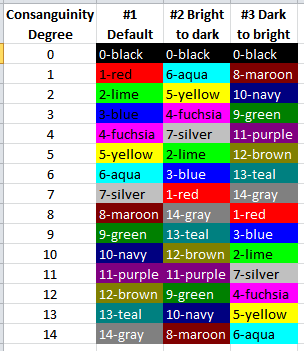
ColorCode-byConsanguinity2.sql Consanguinity degree mapped via lookup table to RootsMagic color code values so that the closest are brightest and farthest are darkest.
ColorCode-byConsanguinity3.sql Consanguinity degree mapped via lookup table to RootsMagic color code values so that the closest are darkest and farthest are brightest.

ColorCode-byConsanguinityColorTable2.PNG
Consanguinity color coding by script#.

I used a spreadsheet to sort the colors by brightness and hue and to generate the SQL INSERT statements that create the table to map the consanguinity degrees to color codes for versions 2 and 3.
Color_Code-by_Consanguinity_Color_Table.png
ColorCodeDistances.xlsx You could adapt this spreadsheet to color code consanguinity as you see fit and edit a script accordingly with the revised set of SQL statements.

Descendants Only 2026-02-23

If Relate2=0 and 0 < Relate1 < 999 for a person, then that is a descendant of the reference person. So, in any of the 3 scripts above, simply add a further constraint:


WHERE Relate1 < 999 –except self and in-laws
AND Relate2=0 –descendants only
;

The 1st script, ColorCode-byConsanguinity1.sql, works with the expanded set of colours in RM9-11 if the following line is revised:

SET Color = MIN(Relate1 + Relate2, 14) –change 14 to 27 for RM9-11

The other scripts need to be extensively revised along with the spreadsheet, ColorCodeDistances.xlsx, to incorporate the expanded set of colour codes and changes in some of the colours for codes <=14, the maximum number in the RM4-7 set.